SMB Connection
Use the SMB Connection asset to connect to Windows file shares (SMB/CIFS) from your workflows. Once configured, this connection can be used by an SMB Source to read files or an SMB Sink to write them.
Prerequisites
- Network reachability from the layline.io Configuration Server to the SMB host
- Valid credentials (username/password or username/secret) for the share
Step 1: Name and Describe the Asset
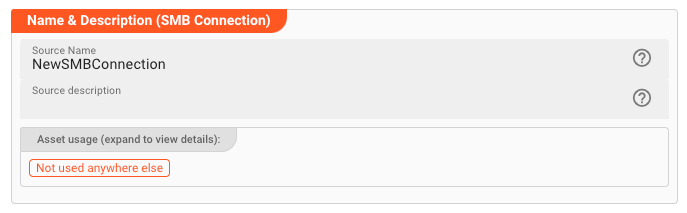
-
Name: Name of the Asset. Spaces are not allowed in the name. -
Description: Enter a description.
Inheritance chain of this Asset — If this Asset extends another, the inheritance chain is shown here. Click to navigate to any parent Asset in the chain.
Asset Usage: If the Asset is used by other Assets, the Asset Usage box shows how many times this Asset is used and which parts are referencing it. Otherwise it is not shown. Click to expand and then click to follow, if any.

In case you are deploying to a Cluster which is running (a) Reactive Engine Nodes which have (b) specific Roles
configured, then you can restrict use of this Asset to those Nodes with matching
roles.
If you want this restriction, then enter the names of the Required Roles here. Otherwise, leave empty to match all
Nodes (no restriction).
Step 2: Configure SMB Settings
Enter the connection details for your SMB server.
| Field | Description |
|---|---|
| Host | SMB share computer name, hostname, or IP address. |
| Port | IP port. Common values are 139 (NetBIOS) or 445 (Direct SMB over TCP). |
| Domain | Optional Windows domain name. |
| Max. parallel SMB commands | Number of concurrent SMB operations allowed. Increase this when the same connection is shared across multiple sources or sinks to improve throughput. |
Authentication
Choose one of two authentication methods.
Username and Password
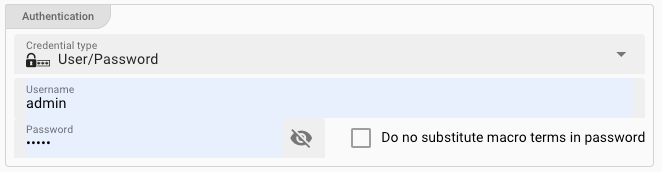
| Field | Description |
|---|---|
| Credential Type | Select User/Password. |
| Username (macro supported) | Your SMB username. |
| Password (macro supported) | Your SMB password. |
| Do not substitute macro terms in password | Check if your password literally contains ${...} and you do not want it treated as a macro. |
Username and Secret
| Field | Description |
|---|---|
| Credential Type | Select User/Secret. |
| Username (macro supported) | Your SMB username. |
| Secret | Choose a secret from the drop-down. If the list is empty, create a secret first. |
For details on how secrets are stored and managed, see Secret Management.
Connection Test
As you enter settings, layline.io continuously attempts to connect to the SMB server. The result appears at the bottom of the settings panel:
| Status | Appearance |
|---|---|
| Success |  |
| Failure |  |
Hover over a red error message to see the full details — this usually points directly to the problem (wrong host, invalid port, authentication failure, etc.).
- The test is not run from your web browser. The Configuration Server performs the test from the server side.
- If you see a connection error, verify that the Configuration Server can reach the SMB host (firewall rules, DNS, routing).
- A successful test here does not guarantee that the Reactive Engine can connect at runtime. The engine running your workflow must also have network access to the SMB host.