Application Settings
Personal preferences that control how the layline.io web interface behaves and appears for your user account.
Purpose
Application Settings (also labeled Preferences in the UI) contain user-specific configuration options that affect your personal experience with the layline.io SPA (Single Page Application). These settings are distinct from project or system configuration — they control how information is displayed to you and how the interface behaves.
Settings here include:
- Log display limits — How many log entries to keep in the browser
- UI appearance — Theme selection and optional network activity indicator
- AI Chat configuration — Consent and connection settings for the integrated AI assistant
Access
Navigate to Settings → Application Settings → Preferences.
Access to the Settings section requires appropriate privileges (typically admin or delegated roles with settings access).
Layout
The Preferences page displays as a single scrollable panel with configuration grouped into three sections:
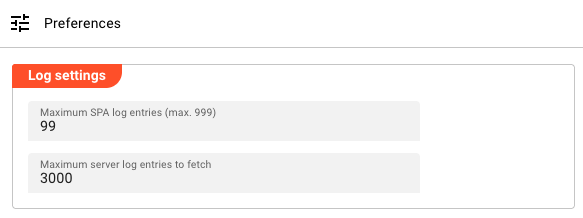
Each section uses a group box to visually separate the settings by function.
Log Settings
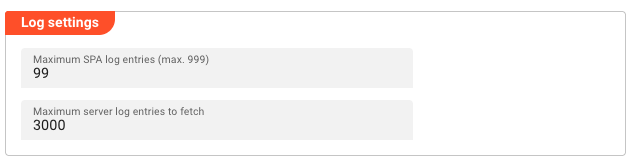
Controls how many log entries are retained and displayed in the browser.
Maximum SPA Log Entries
Field: Maximum SPA log entries (max. 999)
Type: Numeric input
Range: 1–999
Default: 99
Sets the maximum number of log entries to retain in the browser's memory for the SPA (Single Page Application) log. Older entries are discarded when this limit is reached.
A higher value lets you review more history but uses more browser memory. The maximum allowed is 999 entries.
Maximum Server Log Entries
Field: Maximum server log entries to fetch
Type: Numeric input
Default: 1000
Controls how many log entries are retrieved from the server when viewing server-side logs. This affects the initial load of log data in the Operations views.
Display Settings
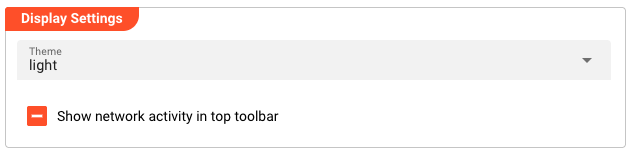
Configures the visual appearance of the layline.io interface.
Theme
Field: Theme
Type: Dropdown selection
Options:
| Option | Description |
|---|---|
| Light | Light color scheme with dark text on light backgrounds |
| Dark | Dark color scheme with light text on dark backgrounds |
| Auto | Automatically matches your operating system theme preference |
The theme setting applies immediately when changed — no page reload required.
Show Network Activity
Field: Show network activity in top toolbar
Type: Checkbox
Default: Enabled
When enabled, displays a network activity indicator in the top toolbar. This provides visual feedback when the application is communicating with the server.
AI Chat
Configures the integrated AI assistant that can help you with layline.io questions and tasks.
AI Chat Consent
Before using the AI chat feature, you must agree to the terms of use. The consent status is displayed in an info box:
- Positive (green): "You have agreed to the AI chat terms"
- Negative (red): "You have NOT agreed to the AI chat terms"
Action: Click Read and Accept Terms to review and agree to the AI chat terms. Once agreed, the button changes to Revoke AI chat consent if you need to withdraw your consent.
URL of AI Chat
Field: URL of AI chat
Type: Text input
Visible: Only when AI consent is given
The endpoint URL for the AI chat service. This connects the layline.io interface to the AI assistant backend.
API Key
Field: API-Key
Type: Text input (password-style masking recommended)
Visible: Only when AI consent is given
Your personal API key for accessing the AI chat service.
If no API key is configured, a warning appears:
"In order to use the AI-Chat, you must have a valid API key. To obtain one, please contact layline.io at [email protected]."
Behavior
Storage Scope
Application Settings are user-specific and browser-local:
- Settings are stored in your browser's local storage
- They apply only to your current browser on your current device
- They persist across browser sessions (survive closing and reopening the browser)
- They do not sync between different browsers or devices
- They are separate from project configuration or system-wide settings
Immediate Effect
Most preference changes take effect immediately:
- Theme — Applies instantly without reload
- Show network activity — Toggles the indicator immediately
- Log entry limits — Applies to the next log fetch or entry addition
AI Chat Requirements
To use the AI chat feature, all three must be configured:
- Consent given — You must accept the AI chat terms
- URL configured — The AI service endpoint must be set
- API key provided — Valid authentication key for the service
Missing any of these will prevent the AI chat from functioning.
See Also
- Users & Roles — Managing user accounts and privileges
- Cluster Storage — Configuring global cluster definitions
- Operations → Alarm Center — Where log settings affect log display