Users & Roles
User accounts and role-based access control for the layline.io Configuration Server.
Concept
layline.io manages Users and Roles in two separate places:
- Configuration Server — controls who can log in to layline.io and what they can do at the configuration level (manage assets, projects, clusters, and other users).
- Reactive Engine Cluster — controls what users can do at the runtime level (manage deployments, workflows, streams, and so on).
These two sets of users and roles are completely independent. A user account on the Configuration Server is not the same as a user account on a Reactive Engine Cluster, and the privileges available in each area are different.
This page covers the Configuration Server side. For cluster-level user management, see Operations > User Storage.
The Users & Roles section lives under Settings > User Storage. It is accessible to the admin account and to users who hold the Read users & roles privilege on the Configuration Server.
The Three Tabs
User Storage
The User Storage tab is the default view when you open Settings. It shows:
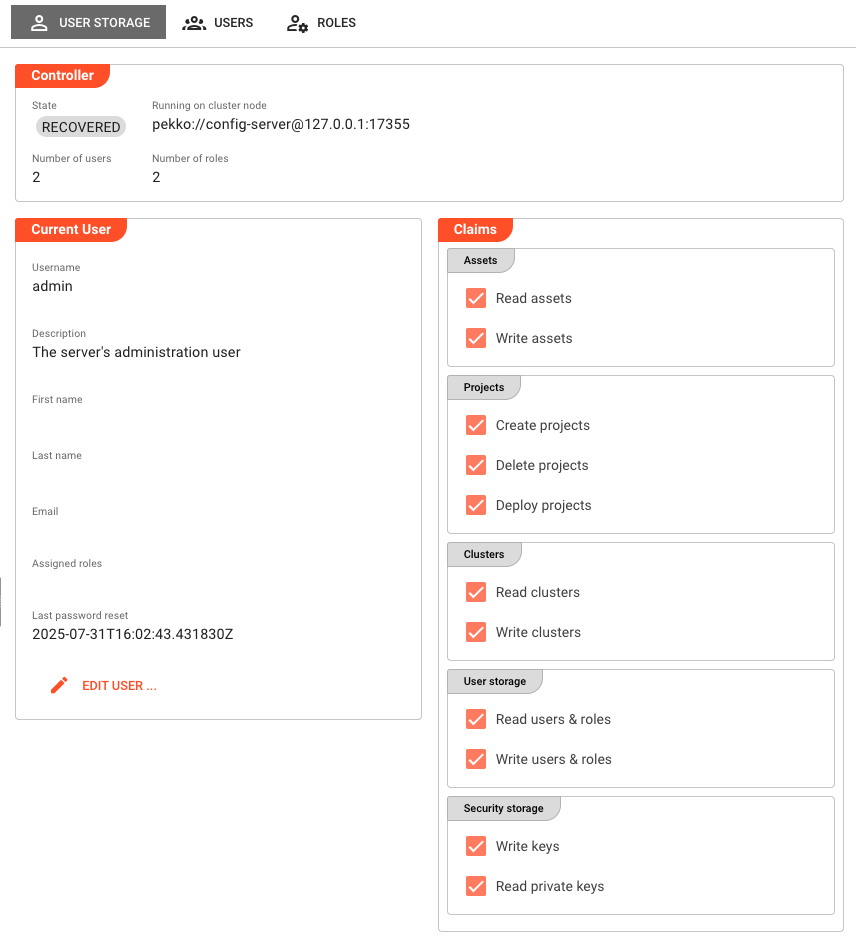
Controller
| Field | Description |
|---|---|
| State | Current operational state of the User Storage controller (e.g. running). |
| Running on cluster node | Address of the cluster node hosting the User Storage controller. |
| Number of users | Total count of user accounts on this Configuration Server. |
| Number of roles | Total count of role definitions on this Configuration Server. |
Current User
Displays the profile of the currently logged-in user:
| Field | Description |
|---|---|
| Username | The login name. Not editable here. |
| Description | Optional free-text description. |
| First name | Given name. |
| Last name | Family name. |
| Email address. | |
| Assigned roles | The roles currently assigned to this user, shown as chips. |
| Last password reset | Timestamp of the most recent password change. |
A Claims panel on the right shows all privileges the current user holds, grouped by category, as read-only checkboxes. These represent the effective permissions inherited from their assigned roles.
Clicking Edit user… opens a dialog where the current user can update their description, name, email, and password. Username and role assignments cannot be changed here — only admins can change role assignments.
Users
The Users tab is visible only to the admin account and users with the Read users & roles privilege.
The tab shows a left/right split:
- Left panel — a list of all user accounts (excluding
admin). Click a user to select them. The + button at the top creates a new user (requires Write users & roles privilege). - Right panel — details of the selected user.
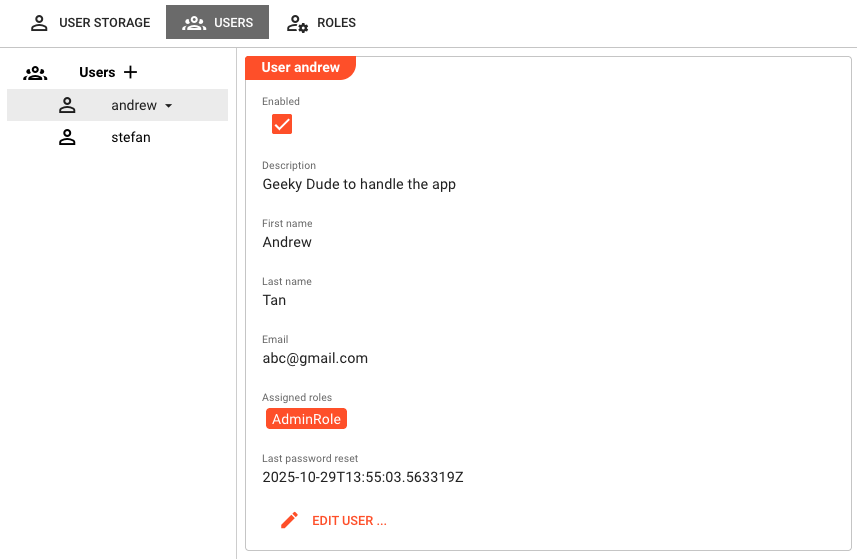
User detail fields:
| Field | Description |
|---|---|
| Enabled | Whether the account is active. Disabled accounts cannot log in. |
| Description | Optional free-text description. |
| First name | Given name. |
| Last name | Family name. |
| Email address. | |
| Assigned roles | Roles granted to this user, shown as chips. |
| Last password reset | Timestamp of the most recent password change. |
A Claims section below the details panel shows all effective privileges the selected user holds, read-only.
Clicking the ▾ dropdown next to a selected user in the list reveals a Remove option to delete the account.
Clicking Edit user… opens the user edit dialog with the following fields:
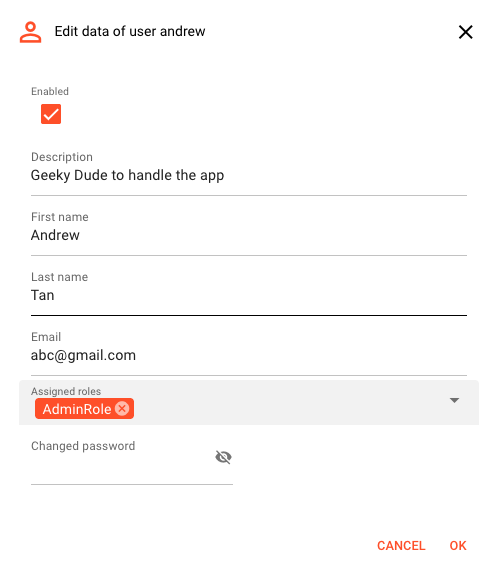
| Field | Description |
|---|---|
| Enabled | Enable or disable the account. |
| Description | Free-text description. |
| First name | Given name. |
| Last name | Family name. |
| Email address. | |
| Assigned roles | Multi-select of available roles. Changes take effect on next login. |
| Password / Retype password | Leave blank to keep the current password. Enter a new value to change it. |
When creating a new user, the Username field also appears (read-only on edit).
The username cannot be changed after a user is created.
Roles
The Roles tab is visible only to the admin account and users with the Read users & roles privilege.
The tab shows a left/right split:
- Left panel — a list of all defined roles. Click a role to select it. The + button creates a new role (requires Write users & roles privilege).
- Right panel — details of the selected role.
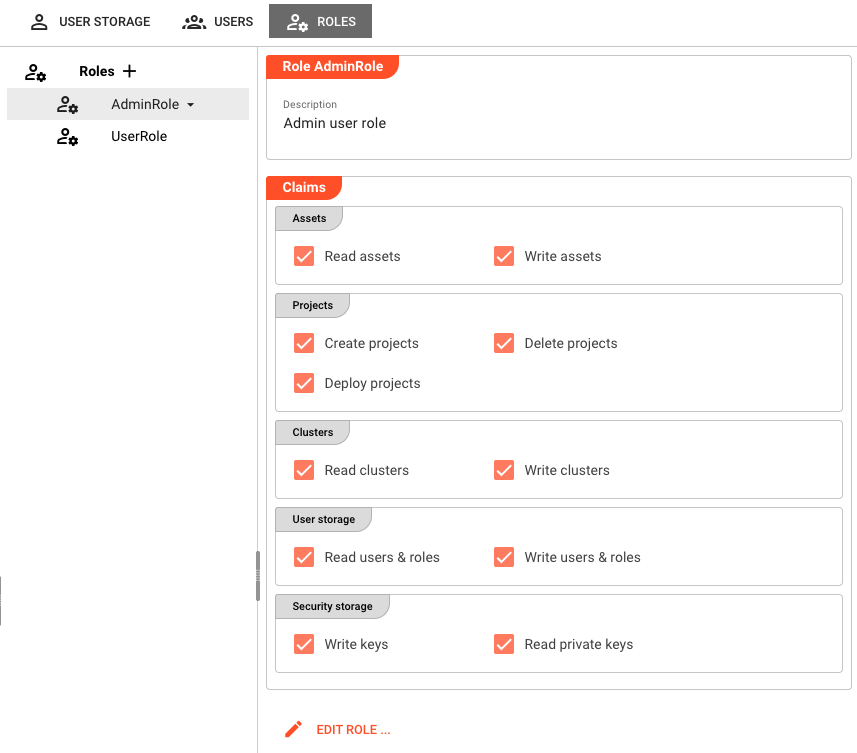
Role detail fields:
| Field | Description |
|---|---|
| Description | Free-text description of the role's purpose. |
| Privileges | All available privileges, grouped by category, shown as read-only checkboxes. Filled checkboxes indicate privileges this role grants. |
Clicking Edit role… opens the role edit dialog with:
| Field | Description |
|---|---|
| Name of the role | Unique identifier for this role. Read-only when editing an existing role. |
| Description | Free-text description. |
| Privileges | Checkboxes organized by category. Check to grant a privilege to this role. |
Clicking the ▾ dropdown next to a selected role reveals a Remove option to delete the role. Removing a role does not delete users assigned to it, but those users lose the privileges the role provided.
The role name cannot be changed after a role is created.
Privileges Reference
The following privileges are available for roles on the Configuration Server. These are distinct from the privileges available on a Reactive Engine Cluster (managed under Operations > User Storage).
| Category | Privilege | Description |
|---|---|---|
| Assets | Read assets | View asset definitions in projects. |
| Assets | Write assets | Create and modify asset definitions. |
| Projects | Create projects | Create new projects. |
| Projects | Delete projects | Delete existing projects. |
| Projects | Deploy projects | Deploy projects to a cluster. |
| Clusters | Read clusters | View cluster configurations. |
| Clusters | Write clusters | Create and modify cluster configurations. |
| User storage | Read users & roles | View user accounts and role definitions (enables the Users and Roles tabs). |
| User storage | Write users & roles | Create, edit, and delete users and roles. |
| Security storage | Write keys | Create and manage cryptographic keys. |
| Security storage | Read private keys | Read private key material. |
The admin account always has full access regardless of role assignments. All other accounts derive their permissions exclusively from their assigned roles.
Behavior
- The Users and Roles tabs are hidden entirely if the current user does not hold the Read users & roles privilege.
- The + (create) button on the Users and Roles tabs is disabled if the current user does not hold the Write users & roles privilege.
- The Edit user… button in the Users tab is also disabled without Write users & roles.
- Changes to role assignments take effect on the user's next login — currently active sessions are not affected.
See Also
- Operations > User Storage — User and role management for a Reactive Engine Cluster (separate from Configuration Server users)
- Security Storage — Managing cryptographic keys and certificates
- Settings — Overview of all Settings sections