User Storage
Manage the users and roles that control access to a Reactive Engine Cluster.
Purpose
layline.io separates user management between two systems: the Configuration Server and each Reactive Engine Cluster. Users and roles on these two systems are independent — being a user on one does not grant access to the other.
The Operations → User Storage page is where you manage cluster-level users and roles. If you need to manage users on the Configuration Server itself, see Settings → Users & Roles.
Access control on the cluster follows a standard model:
- Each user can be assigned to one or more roles.
- Each role carries a set of claims (fine-grained privileges).
- A user's effective claims are the union of all claims from all their assigned roles.
The Users and Roles tabs are only visible to users who hold the Read users & roles or Write users & roles claim on the cluster. If you only see the User Storage tab, your account does not have user-management privileges.
User Storage Tab
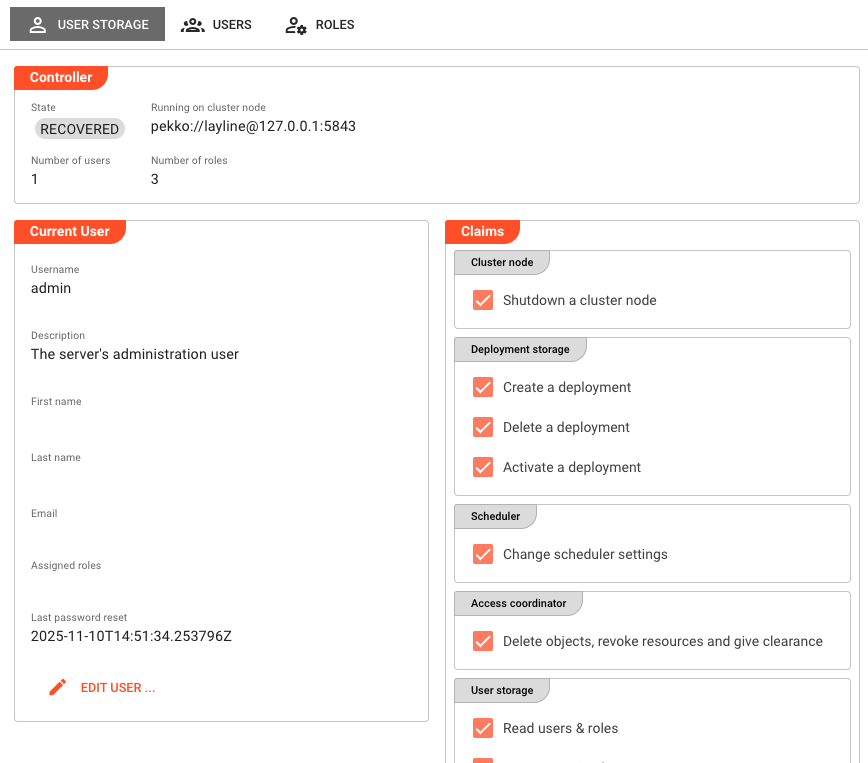
The User Storage tab is always visible. It shows the current state of the cluster's user storage and the profile of the logged-in user.
Controller
The Controller group shows the state of the user storage service running on the cluster:
State — Current state of the user storage controller (e.g. Running).
Running on cluster node — The cluster node address where the user storage controller is active.
Number of users — Total number of users registered on this cluster.
Number of roles — Total number of roles defined on this cluster.
Current User
The Current User group displays the profile of the currently logged-in user:
Username — The login name. Cannot be changed.
Description — Optional description of the account.
First name — User's first name.
Last name — User's last name.
Email — Email address associated with the account.
Assigned roles — The roles this user is assigned to, shown as chips.
Last password reset — Timestamp of the most recent password change.
Click Edit user … to update your own profile, including your password. You will be prompted to confirm your current password when changing it.
Claims
The Claims group shows the effective claims for the logged-in user — the combined set of privileges inherited from all assigned roles. These are read-only checkboxes showing what the current user is and is not permitted to do on this cluster.
See Available Claims for a description of each claim.
Users Tab
The Users tab lists all users registered on the cluster (the admin user is excluded from the list). It is only visible if the logged-in user holds the Read users & roles or Write users & roles claim.
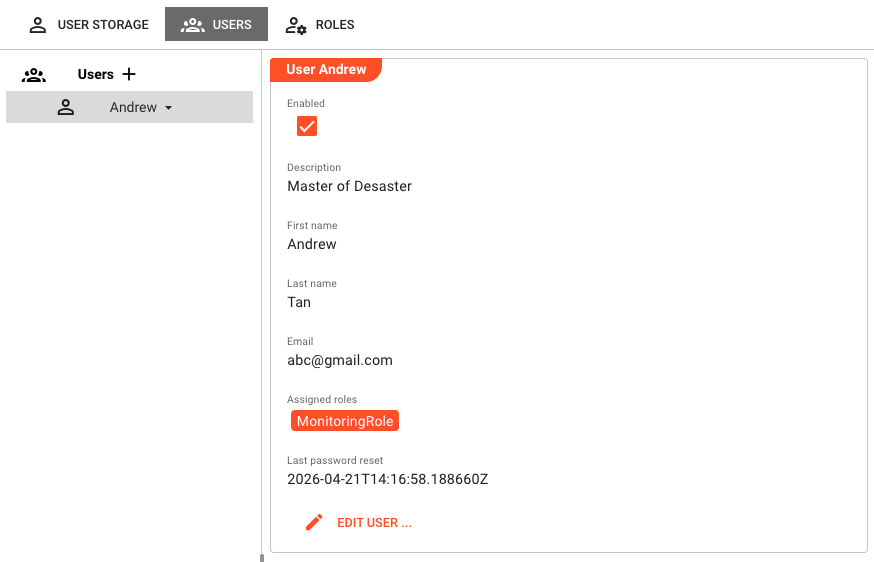
The tab uses a split-panel layout: the user list is on the left, and the details for the selected user are on the right.
User Detail Panel
Selecting a user in the list shows their details on the right:
Enabled — Whether the user account is active.
Description — Optional description.
First name / Last name — User's name.
Email — Email address.
Assigned roles — The roles this user belongs to, shown as chips.
Last password reset — Timestamp of the most recent password change.
Click Edit user … to modify the user. This button is disabled if the logged-in user only has Read users & roles and not Write users & roles.
Adding a User
Click the + button next to the Users heading to create a new user.
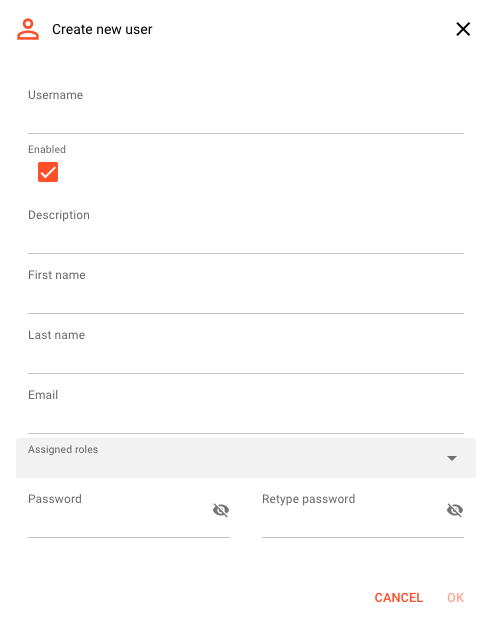
The username cannot be changed after creation. Choose it carefully.
The create dialog lets you set:
- Username — Required. Immutable after creation.
- Enabled — Whether the account is active immediately.
- Description, First name, Last name, Email — Optional profile fields.
- Assigned roles — One or more roles to assign at creation time.
- Password / Retype password — Initial password for the account.
Removing a User
Select the user in the list. A dropdown arrow appears next to the username — click it and select Remove. A confirmation dialog will appear before the user is deleted.
Roles Tab
The Roles tab lists all roles defined on the cluster. It is only visible if the logged-in user holds the Read users & roles or Write users & roles claim.
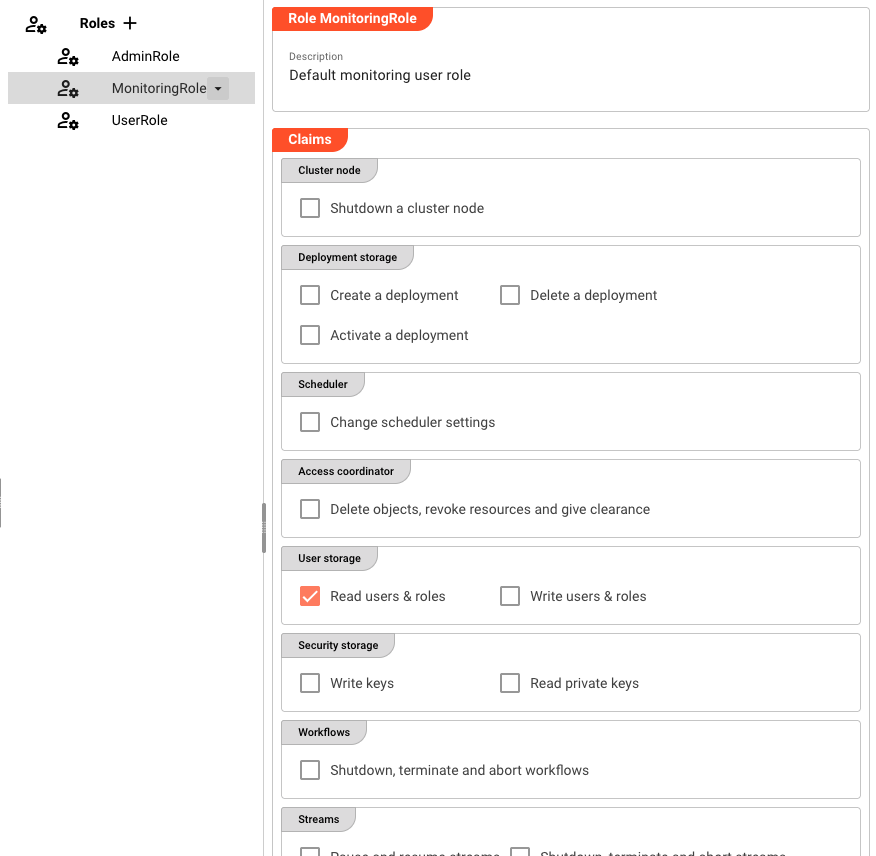
The tab uses a split-panel layout: the role list is on the left, and the claims for the selected role are shown on the right.
Role Detail Panel
Selecting a role shows its details:
Description — Optional description of the role's purpose.
Claims — Checkboxes showing which privileges are assigned to this role, grouped by category.
Click Edit role … to modify the role's description and claims. This button is disabled if the logged-in user only has Read users & roles.
Adding a Role
Click the + button next to the Roles heading to create a new role.
The role name cannot be changed after creation.
The create dialog lets you set:
- Name — Required. Immutable after creation.
- Description — Optional.
- Claims — Select the privileges this role should grant.
Removing a Role
Select the role in the list. A dropdown arrow appears next to the role name — click it and select Remove. A confirmation dialog will appear before the role is deleted.
Available Claims
Claims on the Reactive Engine Cluster are grouped by area:
| Group | Claim | Description |
|---|---|---|
| Cluster node | Shutdown a cluster node | Allows the user to initiate a cluster node shutdown. |
| Deployment storage | Create a deployment | Allows uploading and creating new deployments. |
| Delete a deployment | Allows removing existing deployments. | |
| Activate a deployment | Allows activating a deployment on the engine. | |
| Scheduler | Change scheduler settings | Allows modifying the scheduler configuration. |
| Access coordinator | Delete objects, revoke resources and give clearance | Allows administrative access coordinator operations. |
| User storage | Read users & roles | Allows viewing the Users and Roles tabs. |
| Write users & roles | Allows creating, editing, and deleting users and roles. | |
| Security storage | Write keys | Allows uploading and managing key pairs. |
| Read private keys | Allows reading private key material. | |
| Workflows | Shutdown, terminate and abort workflows | Allows stopping running workflows. |
| Streams | Pause and resume streams | Allows pausing and resuming active streams. |
| Shutdown, terminate and abort streams | Allows stopping running streams. | |
| Services | Test services | Allows using the service test functionality. |
| Sniffing | Sniff streams | Allows attaching a sniffer to running streams. |
See Also
- Settings → Users & Roles — Managing users and roles on the Configuration Server
- Operations → Security Storage — Managing key pairs on the cluster