Security Storage
A central view of the cluster's cryptographic material: private keys, identity certificates, trusted certificates, SSH known hosts, and OAuth clients.
Purpose
The Security Storage holds the cryptographic assets that layline.io components use at runtime — TLS certificates, SSH keys, trusted CA chains, and OAuth credentials for external integrations. Rather than embedding secrets directly in connection or service configurations, assets reference named entries stored here. This makes it possible to rotate keys and certificates without touching your workflow definitions.
The Security Storage view lets you inspect the current state of the storage controller, browse each credential category, and perform full lifecycle operations — creating, importing, editing, and deleting entries — without leaving the cluster operations interface.
Tabs
The Security Storage view is organised into six tabs:
- Security Storage — controller status and item counts
- Private Keys — SSH/TLS key pairs
- Identity certificates — certificates that identify this cluster or its components to external parties
- Trusted certificates — CA and peer certificates the cluster trusts
- Known hosts — SSH known-hosts entries for server fingerprint verification
- OAuth — OAuth client registrations and active access tokens
- Log — runtime log stream for the security storage controller
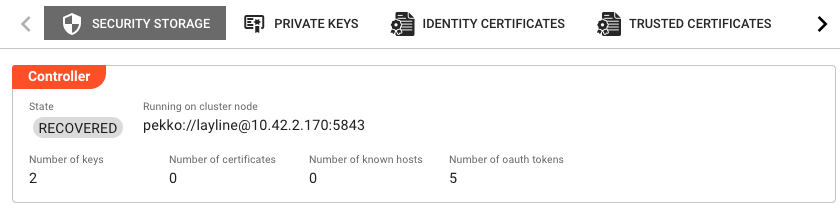
Security Storage (overview tab)
The overview tab shows a Controller panel with read-only status fields:
State — Current lifecycle state of the security storage controller (e.g. RUNNING).
Running on cluster node — The address of the cluster node that currently hosts the active security storage controller instance.
Number of keys — Total private keys currently held in the storage.
Number of certificates — Total certificates (identity + trusted) currently held.
Number of known hosts — Total SSH known-host entries.
Number of oauth tokens — Total active OAuth access tokens.
These counters update automatically when you navigate to this tab.
Private Keys
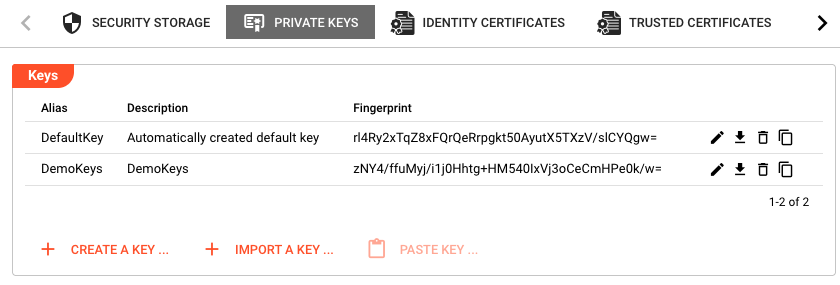
Displays a table of all private key pairs stored in the cluster, with columns:
| Column | Description |
|---|---|
| Alias | The unique name used to reference this key in asset configurations. |
| Description | Optional free-text description. |
| Fingerprint | Cryptographic fingerprint of the public key. |
| (actions) | Edit, download, delete, and copy buttons per row. |
Actions available from this tab:
- Create a key — Generates a new public/private key pair directly on the cluster. You supply an alias and optional description; the key material is generated server-side.
- Import a key — Uploads an existing private key file into the cluster. You provide the alias, description, and key file.
- Paste key — Pastes a key previously copied to the internal clipboard (enabled only when a key is on the clipboard).
Per-row actions:
- Edit (pencil icon) — Update the alias or description of an existing key.
- Download (download icon) — Download the private key to a local file (
<alias>.key). - Delete (remove icon) — Permanently removes the key from the storage after confirmation.
- Copy (copy icon) — Copies the private key to the internal clipboard so it can be pasted into another Security Storage (e.g. a different cluster).
Identity certificates
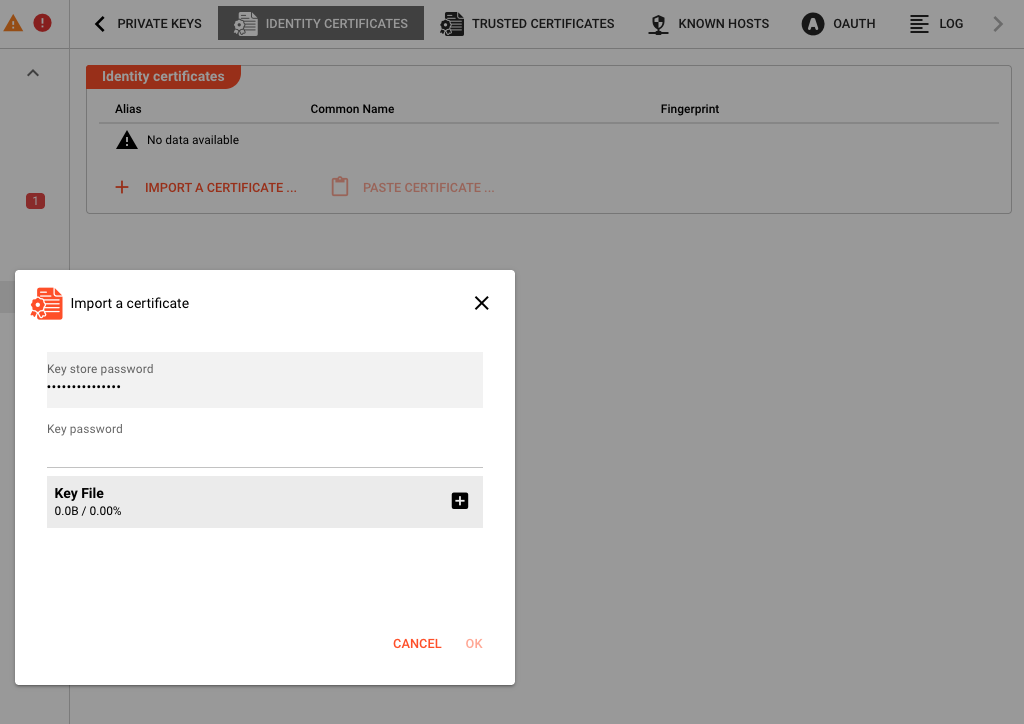
Displays a table of identity certificates — certificates that represent this cluster to external systems:
| Column | Description |
|---|---|
| Alias | The unique name used to reference this certificate. |
| Common Name | The CN field from the certificate's subject. |
| Fingerprint | Cryptographic fingerprint of the certificate. |
| (actions) | Edit and delete buttons per row. |
Actions available from this tab:
- Import a certificate — Uploads a certificate file. You supply the alias and the certificate file.
- Paste certificate — Pastes a certificate previously copied to the internal clipboard.
Per-row actions:
- Edit — Update the alias or description of an existing certificate entry.
- Delete — Permanently removes the certificate after confirmation.
Trusted certificates
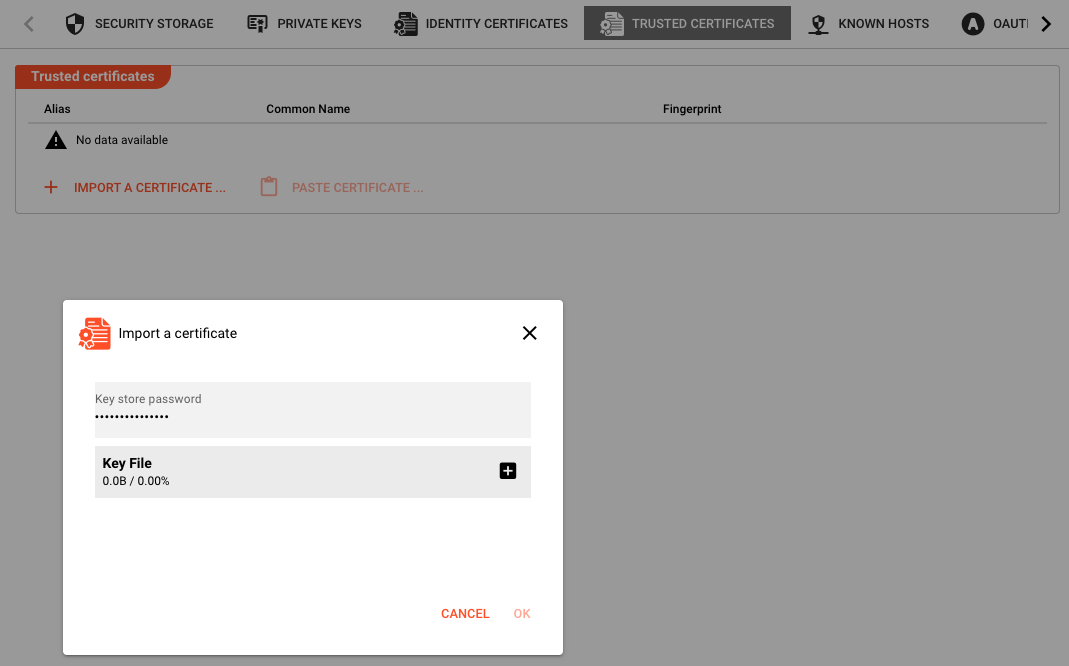
Displays a table of trusted CA and peer certificates — certificates that the cluster accepts as valid when connecting to external services:
| Column | Description |
|---|---|
| Alias | The unique name used to reference this certificate. |
| Common Name | CN from the certificate subject. |
| Fingerprint | Cryptographic fingerprint. |
| (actions) | Edit and delete buttons per row. |
Actions available from this tab:
- Import a certificate — Uploads a trusted CA or peer certificate.
- Paste certificate — Pastes from the internal clipboard.
Per-row actions:
- Edit — Update alias or description.
- Delete — Removes the certificate after confirmation.
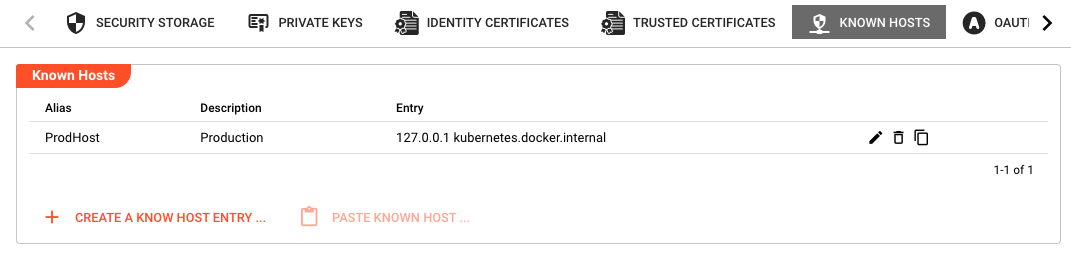
Known hosts
Displays SSH known-host entries, which the cluster uses to verify SSH server fingerprints and prevent man-in-the-middle attacks:
| Column | Description |
|---|---|
| Alias | The unique name for this known-host entry. |
| Description | Optional free-text description. |
| Entry | The raw known-hosts line (hostname + key type + public key). Long entries are truncated in the table view. |
| (actions) | Edit, delete, and copy buttons per row. |
Actions available from this tab:
- Create a known host entry — Opens a dialog to create a new known-host entry manually. You provide the alias, description, and the raw entry text.
- Paste known host — Pastes a known-host entry from the internal clipboard.
Per-row actions:
- Edit — Modify the alias, description, or entry text.
- Delete — Removes the entry after confirmation.
- Copy — Copies the entry to the internal clipboard for use elsewhere.
OAuth
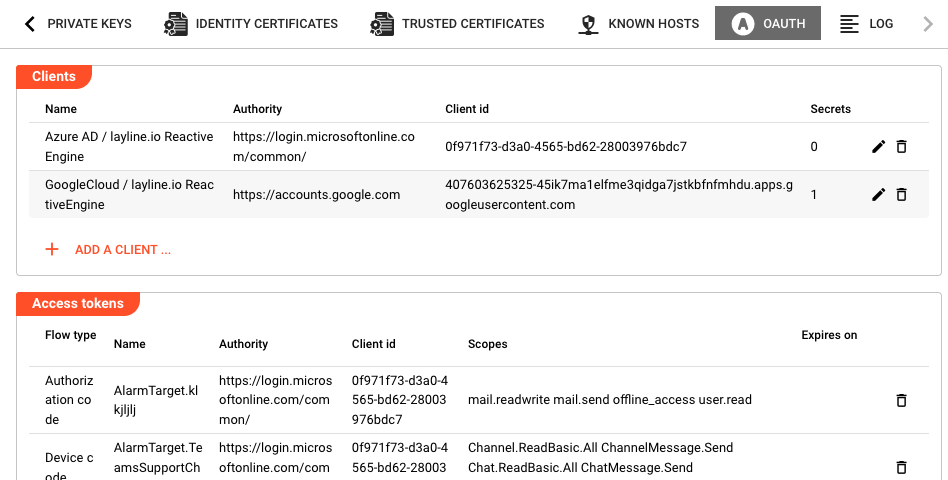
The OAuth tab is divided into two sections: Clients and Access tokens.
Clients
A table of OAuth client registrations that the cluster can use when authenticating against external identity providers:
| Column | Description |
|---|---|
| Name | The unique alias for this OAuth client registration. |
| Authority | The identity provider's base URL (e.g. https://login.microsoftonline.com/<tenant-id>). |
| Client id | The application (client) ID issued by the identity provider. |
| Secrets | Number of client secrets registered for this client. |
| (actions) | Edit and delete buttons per row. |
Add a client — Opens a dialog to create a new OAuth client registration. Fields in the dialog:
- Name — Unique alias for this registration.
- Authority — Identity provider URL.
- Client id — Application client ID from the provider.
- Token endpoint — Full URL of the provider's token endpoint (if not auto-discoverable from the authority).
- Device authorization endpoint — Full URL of the device authorization endpoint, for device-flow authentication.
- Redirect URL — Optional callback URL for the authorization code flow. If not specified, the platform uses a default redirect URL.
- Secrets — One or more client secrets, each with a description and an optional expiry date (
Valid until). Secrets whose value is already stored are shown as***; new entries require the secret value to be entered.
OAuth Flow Types
When an access token is requested, the cluster uses one of three OAuth 2.0 flows based on the token configuration:
| Flow Type | Description | Use Case |
|---|---|---|
| Authorization Code | The client exchanges an authorization code for tokens. Uses PKCE (Proof Key for Code Exchange) to prevent authorization code interception attacks. | Interactive user authentication where the user logs in via a browser and the application receives a callback. |
| Client Credentials | The client authenticates directly with its client ID and secret to obtain a token. | Server-to-server authentication without user involvement. |
| Device Code | The user authenticates on a separate device by entering a user code at a verification URL. | Input-constrained devices (e.g., IoT, smart TVs) where entering credentials directly is impractical. |
PKCE Enhancement: The authorization code flow now uses PKCE (RFC 7636) by default. This security enhancement protects against authorization code interception attacks by adding a code challenge and verifier to the token exchange. No configuration is required — the platform automatically generates and validates PKCE parameters.
Access tokens
A read-only table of active OAuth access tokens that the cluster has acquired:
| Column | Description |
|---|---|
| Flow type | The OAuth flow used to obtain the token (e.g. CLIENT_CREDENTIALS, DEVICE_CODE). |
| Name | Name of the associated OAuth client registration. |
| Authority | Identity provider URL. |
| Client id | Application client ID. |
| Scopes | Space-separated list of scopes the token covers. |
| Expires on | Token expiry timestamp (blank if token has no expiry). |
| (actions) | Logout (valid tokens) or Remove (expired tokens). |
Per-row actions:
- Logout — Revokes the token at the identity provider and removes it from storage. Available only while the token is still valid (expiry in the future).
- Remove — Removes an expired token from storage without contacting the identity provider.
Log
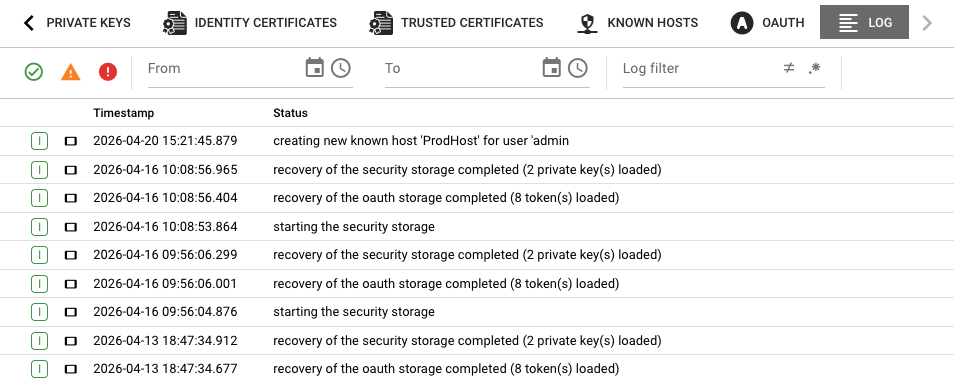
Streams the live log output from the security storage controller process. Useful for diagnosing issues with certificate loading, key operations, or OAuth token refresh failures.
The log view uses the same shared log component as other Operations pages. Events can be selected to inspect details.
Behavior
- The overview tab polls the controller state once on load. Navigate away and back to refresh the counters.
- Key, certificate, and known-host tables refresh automatically after create, import, paste, edit, or delete operations.
- The Paste actions are only enabled when the internal clipboard contains compatible data (a key, certificate, or known-host entry respectively). Clipboard contents are populated via the Copy action on the relevant row.
- When pasting an entry whose alias conflicts with an existing one, the system appends a numeric suffix (e.g.
my-key(2)) to avoid collisions. - OAuth client secrets are write-once from the UI: once saved, the secret value is masked. To rotate a secret, add a new secret entry and delete the old one.
- Deleting an OAuth client removes its registration but does not revoke active tokens that were issued using it. Use the Logout action on the Access tokens table to revoke individual tokens.
See Also
- Settings Secret Storage — Settings-level vault for managing cryptographic material that can be referenced across deployments
- Cluster Overview — Introduction to the cluster operations panel
- Access Coordinator — Manages resource and source coordination across cluster nodes
- OAuthClient Resource — Configures OAuth clients for use within workflow assets