Secret Storage
A settings-level vault for cryptographic assets: private keys, identity certificates, trusted certificates, and SSH known hosts.
Purpose
The Secret Storage provides a centralized location within layline.io settings to manage cryptographic material used across your deployments. Rather than scattering certificates and keys throughout individual asset configurations, you define them once here and reference them by name throughout your workflows.
This separation allows security teams to manage credentials independently from workflow developers. Keys and certificates can be rotated or updated in one place without requiring changes to every asset that uses them.
Structure
The Secret Storage view is organized into four tabs, each managing a distinct category of cryptographic material:
- Private keys — SSH and TLS key pairs
- Identity certificates — Certificates that identify this layline.io instance to external systems
- Trusted certificates — CA and peer certificates that layline.io trusts when connecting to external services
- Known hosts — SSH known-hosts entries for verifying remote server identities
Private keys
The Private keys tab displays a table of all private key pairs stored at the settings level:
| Column | Description |
|---|---|
| Alias | The unique name used to reference this key in asset configurations. |
| Description | Optional free-text description of the key's purpose. |
| Fingerprint | Cryptographic fingerprint of the public key for verification. |
| (actions) | Edit, download, delete, and copy buttons per row. |
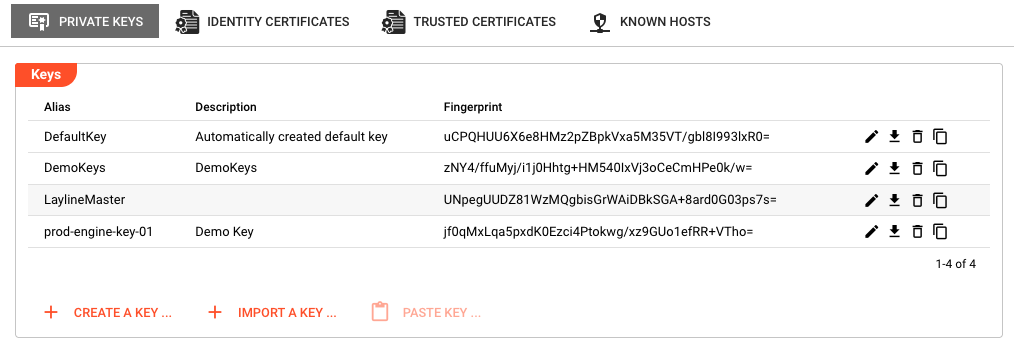
Actions available from this tab:
- Create a key — Generates a new public/private key pair. You provide an alias and optional description; the key material is generated server-side and stored securely.
- Import a key — Uploads an existing private key file from your local machine. You specify the alias, description, and select the key file.
- Paste key — Imports a key previously copied to the internal clipboard (enabled only when a private key is on the clipboard).
Per-row actions:
| Icon | Action | Description |
|---|---|---|
| 🖉 | Edit | Update the alias or description of an existing key. |
| 📥 | Download | Download the private key to a local .key file. |
| 🗑️ | Delete | Permanently removes the key from storage after confirmation. |
| 📋 | Copy | Copies the private key to the internal clipboard for pasting into another Secret Storage. |
Identity certificates
The Identity certificates tab manages certificates that identify this layline.io installation to external parties — for example, when establishing TLS connections where layline.io acts as a client that must authenticate itself:
| Column | Description |
|---|---|
| Alias | The unique name used to reference this certificate. |
| Common Name | The CN field from the certificate's subject. |
| Fingerprint | Cryptographic fingerprint of the certificate. |
| (actions) | Edit, delete, and copy buttons per row. |
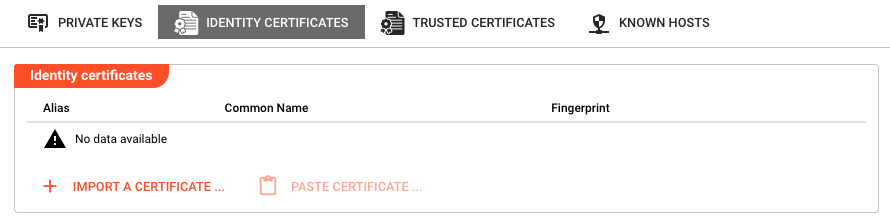
Actions available from this tab:
- Import a certificate — Uploads a certificate file (typically
.crtor.pem). You provide the alias and select the certificate file. - Paste certificate — Pastes a certificate previously copied to the internal clipboard.
Per-row actions:
| Icon | Action | Description |
|---|---|---|
| 🖉 | Edit | Update the alias of an existing certificate entry. |
| 🗑️ | Delete | Permanently removes the certificate after confirmation. |
| 📋 | Copy | Copies the certificate to the internal clipboard. |
Trusted certificates
The Trusted certificates tab manages CA certificates and peer certificates that layline.io trusts when connecting to external services. This includes root CAs, intermediate CAs, and self-signed certificates from internal services:
| Column | Description |
|---|---|
| Alias | The unique name used to reference this certificate. |
| Common Name | The CN field from the certificate's subject. |
| Fingerprint | Cryptographic fingerprint of the certificate. |
| (actions) | Edit, delete, and copy buttons per row. |
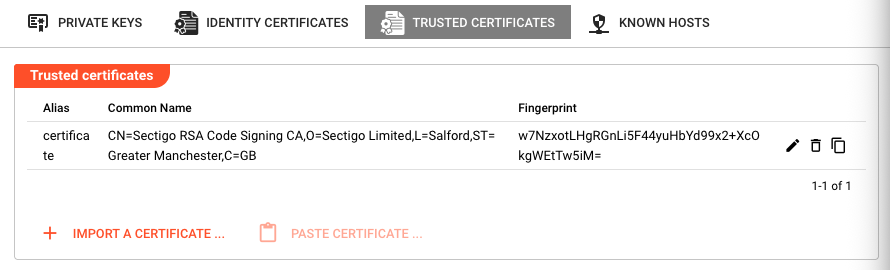
Actions available from this tab:
- Import a certificate — Uploads a trusted CA or peer certificate file.
- Paste certificate — Pastes a certificate from the internal clipboard.
Per-row actions:
| Icon | Action | Description |
|---|---|---|
| 🖉 | Edit | Update the alias of an existing certificate. |
| 🗑️ | Delete | Removes the certificate from the trust store after confirmation. |
| 📋 | Copy | Copies the certificate to the internal clipboard. |
Known hosts
The Known hosts tab manages SSH known-hosts entries, which layline.io uses to verify the identity of SSH servers before establishing connections. This prevents man-in-the-middle attacks by ensuring the server's host key matches a previously verified value:
| Column | Description |
|---|---|
| Alias | The unique name for this known-host entry. |
| Description | Optional free-text description. |
| Entry | The raw known-hosts line (hostname, key type, and public key). Long entries are truncated in the table view. |
| (actions) | Edit, delete, and copy buttons per row. |
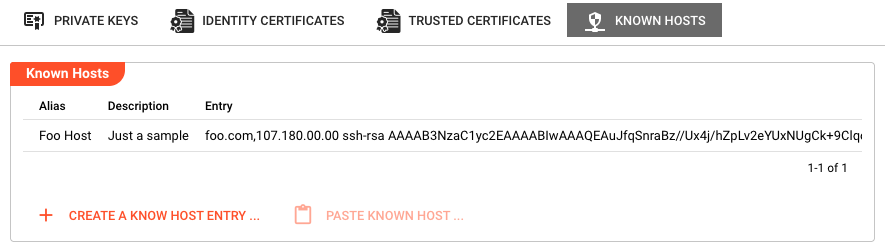
Actions available from this tab:
- Create a known host entry — Opens a dialog to create a new known-host entry manually. You provide the alias, description, and the raw entry text in standard
known_hostsformat. - Paste known host — Pastes a known-host entry previously copied to the internal clipboard.
Per-row actions:
| Icon | Action | Description |
|---|---|---|
| 🖉 | Edit | Modify the alias, description, or entry text. |
| 🗑️ | Delete | Removes the known-host entry after confirmation. |
| 📋 | Copy | Copies the entry to the internal clipboard for use in another Secret Storage. |
Behavior
- Namespacing: Secrets stored here are available at the settings level and can be referenced by deployments that use this settings configuration.
- Alias conflicts: When importing or pasting an entry whose alias conflicts with an existing one, the system automatically appends a numeric suffix (e.g.,
my-key(2)) to avoid collisions. - Clipboard integration: The Copy and Paste actions work with layline.io's internal clipboard, not your operating system's clipboard. This allows secure transfer of keys and certificates between different Secret Storage instances (e.g., from one cluster's settings to another).
- Automatic refresh: Tables refresh automatically after create, import, paste, edit, or delete operations.
- No download for certificates: Identity and trusted certificates cannot be downloaded through the UI — they can only be copied to the internal clipboard. Private keys can be downloaded because you may need to distribute the public portion or back up the key material.
See Also
- Cluster Security Storage — Cluster-level view of the same cryptographic material with additional operational controls
- Application Settings — Configure application-level settings and defaults