Deployment Issues
My deployment won't start or fails to activate.
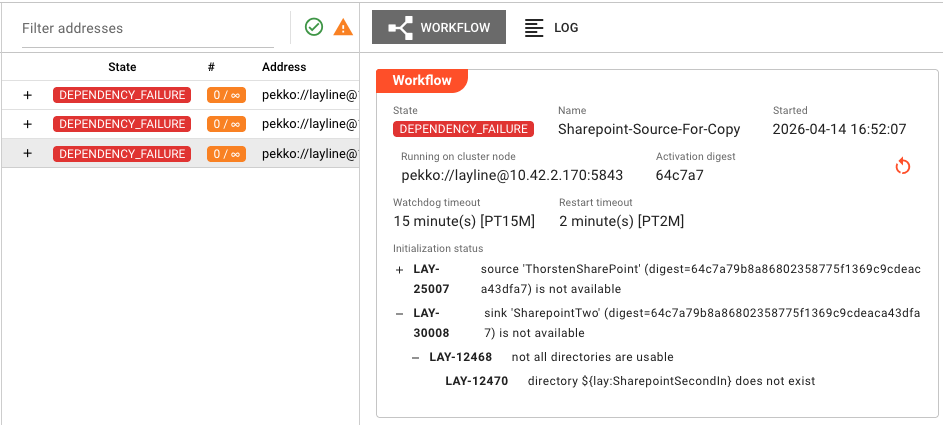 Operations → Engine State view showing a workflow in DEPENDENCY_FAILURE state with initialization status details
Common Symptoms
- Deployment shows error state in Operations → Engine State
- Initialization failures listed in the deployment details
- Deployment hangs in transitional state (starting/stopping)
- Validation errors when attempting to deploy
Diagnosis Checklist
1. Check Validation Errors
Upon deployment to Cluster the Config Server runs validations on the Deployment itself. Problems are pointed out, if any:
- Go through the list of issues.
- Click on each to navigate to the problem area
- Review any errors or warnings
Common validation failures:
- Missing required fields in Assets
- Invalid references to other Assets
- Incoherent workflows
- More
2. Verify Required Assets
Deployments usually need:
| Asset Type | Purpose | Check |
|---|---|---|
| Workflows | At least one workflow to execute | Confirm workflows are saved and valid |
| Environment Assets | Runtime configuration values | Verify all ${lay:VAR} references have matching Environment Assets |
| Secret Assets | Credentials and sensitive data | Check all secret references exist in Secret Resource Asset |
3. Check Environment Variables
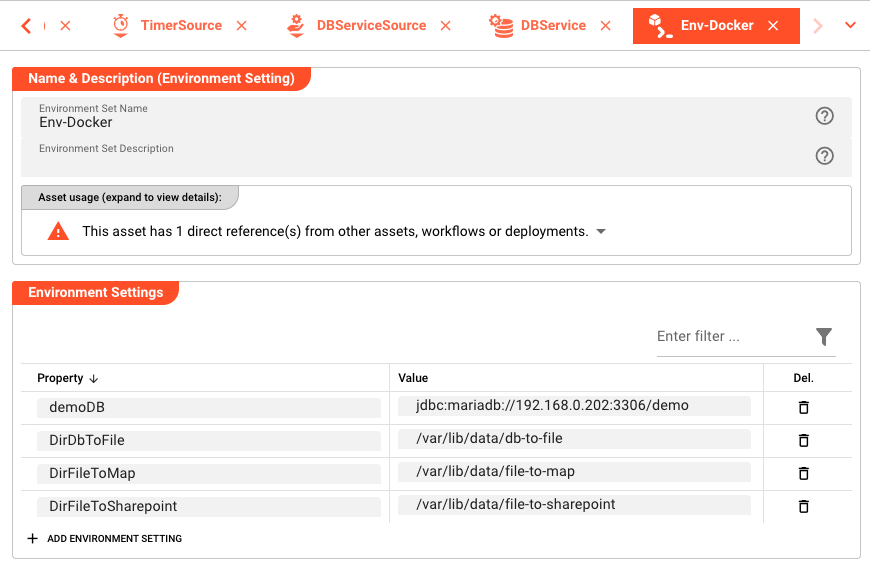 Project view showing an Environment Asset with variable definitions (Env-Docker with database and directory paths)
If your Assets use ${lay:VAR_NAME} syntax:
- Navigate to Project → Assets → Environments
- Verify an Environment Asset exists with matching variable names
- Ensure the Environment Asset is included in the deployment
4. Review Secrets Variables
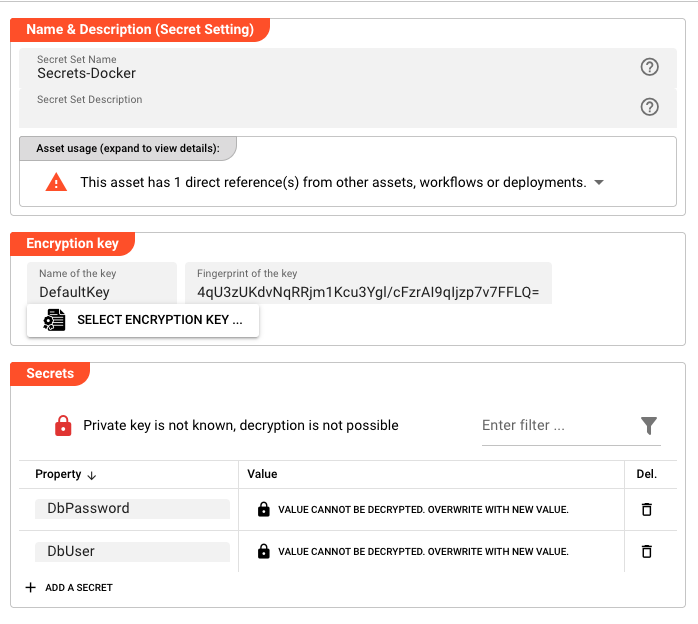 Project → Assets → Secret Storage showing Secrets-Docker asset with encrypted DbPassword and DbUser credentials
For Assets referencing secrets:
- Go to Project → Assets → Resources → Secrets
- Verify a Secrets Asset exists with matching variable names
- Ensure the Secret Asset is included in the deployment
Common Error Scenarios
Error: "missing environment variable name"
Cause: An Environment Asset has an entry without a variable name defined.
Resolution:
- Navigate to Project → Resources → Environments
- Open the Environment Asset mentioned in the error
- Check each entry and ensure all variables have a name filled in
- Remove any empty entries or add the missing variable names
Error: "asset has no valid name"
Cause: An asset is missing a name or has an invalid name (e.g., contains special characters or is empty).
Resolution:
- Go to Project view
- Look for assets with red error indicators
- Open each problematic asset and check the Name field
- Enter a valid name (alphanumeric characters, underscores, and hyphens allowed)
Error: "asset uses a reserved name '%1'"
Cause: An asset is using a reserved keyword as its name.
Resolution:
- Identify the asset with the reserved name from the error message
- Open the asset in the Project view
- Change the name to something that is not a reserved keyword
Error: "cyclic inheritance relationship for asset %1"
Cause: Assets inherit from each other in a circular chain (e.g., Asset A inherits from Asset B, which inherits from Asset A).
Resolution:
- Identify the asset mentioned in the error message
- Review the inheritance chain by checking each asset's Base Asset or parent reference
- Break the cycle by changing one asset to inherit from a different parent
- Alternatively, remove the inheritance relationship if not needed
Still Having Issues?
If the deployment still won't start:
- Check the logs: Operations → Engine State → select deployment → Log tab
- Review alarms: Operations → Alarm Center for system-level issues
- Verify cluster health: Operations → Cluster → Nodes for node status
See Also
- Deployment Assets — Understanding deployment configuration
- Environment Assets — Runtime configuration
- Secret Assets — Managing credentials
- Alarm Center — System alarm management