Rules
Rules determine which alarm notifications are sent to which targets or target groups. They can be configured at runtime through the Alarm Center, or defined as project assets and deployed with your project. Each rule defines a regular expression that is matched against the alarm name, plus an optional severity filter. When an alarm matches, the rule routes it to the configured targets.
Layout
The tab is split vertically:
- Left — Table of all rules.
- Right — Details panel for the selected rule.
Rules table
The table has two columns:
| Column | Description |
|---|---|
| Rule | The name of the rule. |
| Actions | A remove button appears for the selected rule. |
Toolbar actions
- Add Rule — Opens a prompt to name and create a new rule.
- Filter Rules — Quick text filter by rule name.
- Refresh — Reloads the rule list from the cluster.
Adding a rule
Click Add Rule, enter a unique name, and confirm. The new rule is created with:
- An empty regular expression (
.*behavior is not automatic; you must fill it in) - No severity filter
- No targets
- No target groups
Select the rule to edit its details.
Removing a rule
Select the rule and click the trash icon, then confirm. Deleting a rule stops all routing it performed; alarms that previously matched will no longer be forwarded to those targets.
Rule details
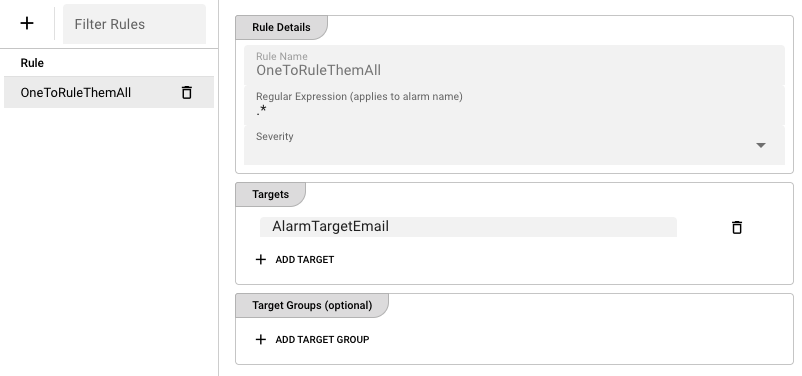
The right panel contains three sections: Rule Details, Targets, and Target Groups.
Rule Details
| Field | Description |
|---|---|
| Rule Name | The rule name (read-only). |
| Regular Expression | A Java-compatible regular expression applied to the alarm name. If the alarm name matches, the rule is triggered. An invalid regex is highlighted with a validation error. |
| Severity | Optional. If set, the rule only matches alarms of the selected severity. If left empty, the rule matches all severities. Valid values are Error, Warning, and Info. |
Targets
A table listing the individual alarm target names that should receive notifications when this rule matches.
- Add Target — Appends a new target entry.
- Remove Target — Deletes the selected row.
- Duplicate detection — If the same target name appears twice, the row is marked with a red failure icon and a "Duplicate target" tooltip.
Enter the exact name of an existing target in each row.
Target Groups (optional)
A table listing the target group names that should also receive notifications.
- Add Target Group — Appends a new group entry.
- Remove Target Group — Deletes the selected row.
- Dropdown selector — Each row has a dropdown arrow that lists all existing target groups, making it easy to pick one without typing.
- Duplicate detection — Duplicate entries are marked in red.
Saving changes
After editing any field, an Apply Changes button appears in the bottom-right. The save is blocked until all validation passes (valid regex, no empty names, no duplicates).
How rule matching works
When an alarm is raised, the Alarm Center evaluates all rules in the following way:
- The alarm name is tested against each rule's Regular Expression.
- If the rule has a Severity set, the alarm's severity must also match.
- If both conditions pass, the alarm is routed to every target and every member of every target group listed in the rule.
Rules are independent. An alarm can match multiple rules and therefore be sent to many different targets simultaneously. There is no "first match wins" logic.
Example rules
| Rule name | Regular Expression | Severity | Targets / Groups | Effect |
|---|---|---|---|---|
all-errors | .* | Error | email-oncall | Every error alarm goes to the on-call email target. |
connection-issues | Connection.* | (any) | teams-ops, email-ops | Any alarm whose name starts with "Connection" goes to both targets. |
scheduler-warnings | Scheduler.* | Warning | ops-group | Scheduler warnings go to the ops-group target group. |