Alarm Targets
Alarm Targets are the destinations where alarm notifications are sent. They can be configured at runtime through the Alarm Center, or defined as project assets and deployed with your project. The Alarm Center supports two target types:
- Email — Send alarms via SMTP (Jakarta Mail) or Microsoft 365 (MS 365).
- Microsoft Teams — Send alarms to Teams chats or channels.
Layout
The tab is split vertically:
- Left — A table listing all configured targets.
- Right — The details panel for the selected target, with sub-tabs for Target and Log.
Target table
The table has two columns:
| Column | Description |
|---|---|
| Target | The name of the target. |
| Actions | A failure icon (red) appears if the target has initialization errors. A remove button appears for the selected target. |
Toolbar actions
- Add Target — Opens a dialog to create a new Email or Teams target.
- Filter Targets — Quick text filter by target name.
- Refresh — Reloads the target list from the cluster.
Adding a target
Click the Add Target button and choose a type:
- Email — Creates an Email target. The default subtype is MS 365, but you can switch to Jakarta (SMTP) in the details panel.
- Teams — Creates a Microsoft Teams target.
After creation, the new target appears in the list and is automatically selected for editing.
Removing a target
Select the target and click the trash icon in the Actions column. You will be asked to confirm the deletion.
Deleting a target that is referenced by active rules will break those rules. Update or delete the affected rules before removing a target.
Target details panel
When a target is selected, the right panel shows two sub-tabs.
Target tab
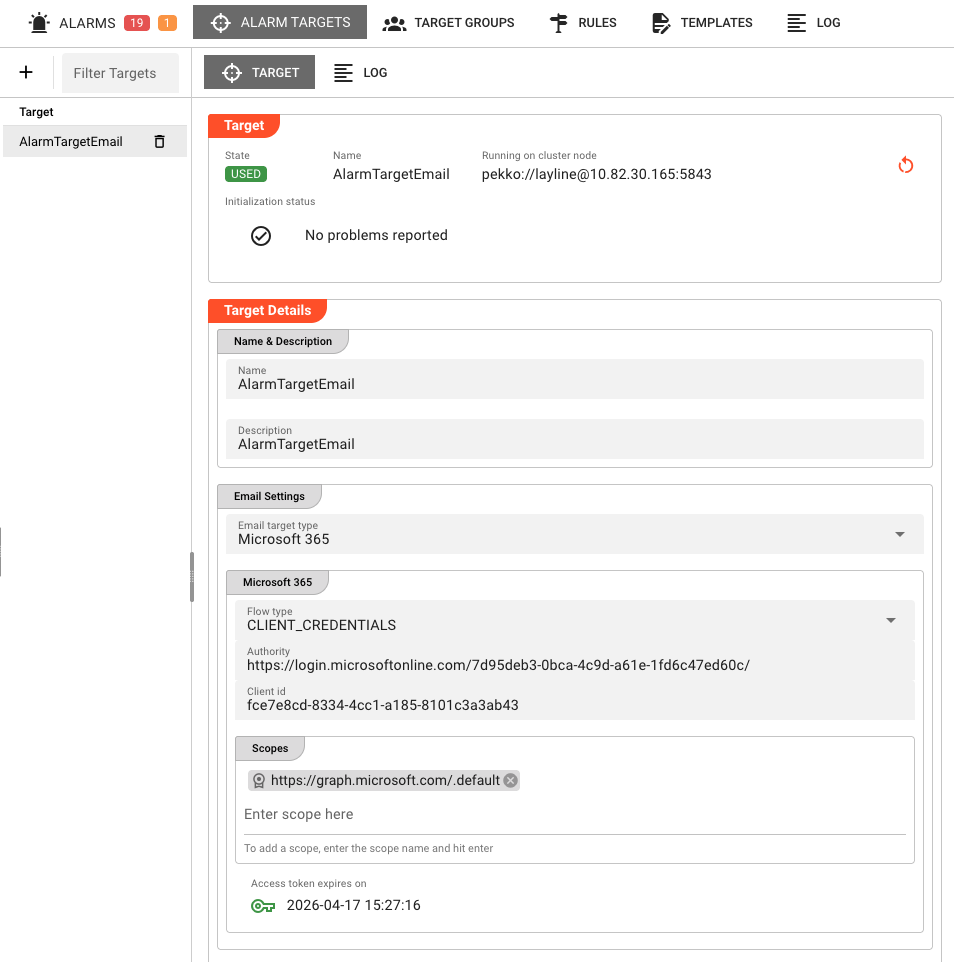
The Target tab displays runtime information and editable configuration.
Target header
| Field | Description |
|---|---|
| State | Current operational state, shown as a colored badge (e.g., OK in green). |
| Name | The target name. This is read-only after creation. |
| Running on cluster node | The node address where the target service is active. |
| Initialization status | Lists any startup failures. If no problems are reported, a green checkmark is shown. |
A Restart Target button in the header lets you restart the target service on the cluster. This is useful after changing credentials or network settings.
Target-specific configuration
Below the header, an editor appears based on the target type.
Email target configuration
Email targets are configured in three sections: Name & Description, Email Settings, and Recipients.
Name & Description
| Field | Description |
|---|---|
| Name | Target name. Must be unique and can only contain ASCII letters and the characters -_.*$+:@&=,!~';.). |
| Description | Optional free-text description of the target. |
Email Settings
Email target type
A dropdown selects the transport mechanism:
| Option | Description |
|---|---|
| Jakarta | Standard SMTP delivery via a Jakarta Mail server. |
| MS 365 | Delivery through Microsoft 365 using OAuth authentication. |
The fields below change depending on the selected type.
Jakarta (SMTP) settings
| Field | Description |
|---|---|
| User | The SMTP user (displayed read-only). |
| Host | SMTP server hostname or IP address. |
| Port | SMTP server port. Default is 587. |
| Connection security | Choose NONE, START_TLS, or SSL/TLS. |
| Check server identity | When enabled, the client verifies the server's TLS certificate identity. |
| Credentials | Authentication method: None, Password, OAuth, or OAuth (Device code). |
MS 365 settings
MS 365 uses OAuth 2.0 for authentication.
| Field | Description |
|---|---|
| Flow type | None, OAuth (Client Credentials), OAuth (Authorization code), or OAuth (Device code). |
| Authority | The OAuth authority URL (e.g., https://login.microsoftonline.com/{tenant}). |
| Client id | The Azure application (client) ID. |
| Scopes | List of OAuth scopes required to send mail (e.g., Mail.Send). Add scopes one by one and press Enter. |
| Account id | (Read-only, after login) The authenticated account identifier. |
| User | (Read-only, after login) The authenticated user principal. |
| Access token expires on | (Read-only) Token validity. If expired, a login prompt appears to re-authenticate. |
Recipients (Mails)
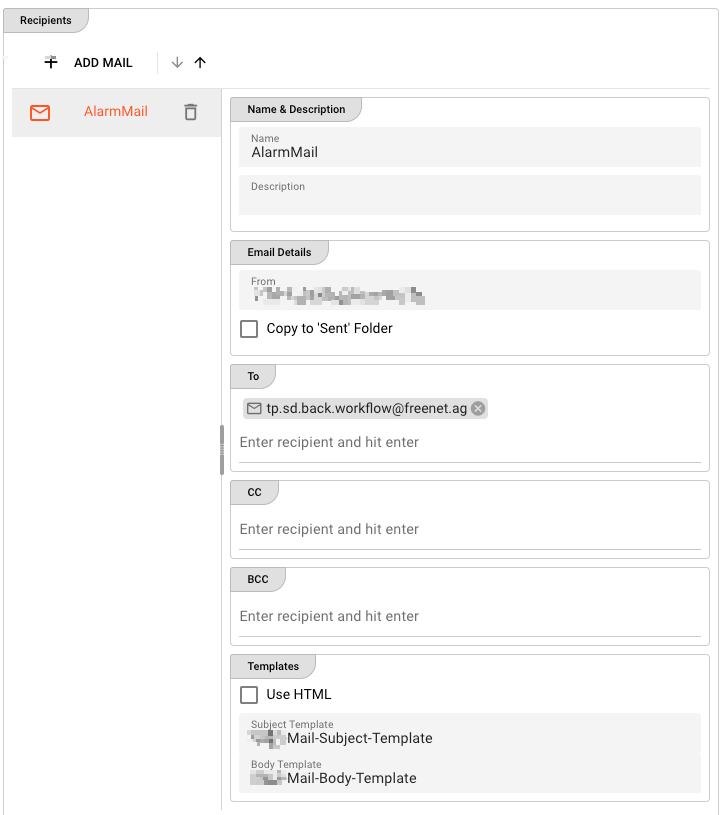
An Email target can contain multiple Mail definitions. Each mail is a distinct notification configuration with its own recipient list and template bindings.
The Mail Ops Editor shows a splitter:
- Left — List of configured mails. Click to select one. You can add or remove mails, and sort the list alphabetically.
- Right — Editor for the selected mail.
Mail fields
| Field | Description |
|---|---|
| Name | Mail configuration name. |
| Description | Optional description. |
| From | Sender email address. |
| Copy to 'Sent' Folder | When enabled, a copy of the sent message is saved in the sender's Sent folder (MS 365 only). |
| To | Primary recipients. Enter addresses one by one and press Enter. |
| CC | Carbon-copy recipients. |
| BCC | Blind carbon-copy recipients. |
| Use HTML | Enables HTML formatting for this mail. |
| Subject Template | Name of a template defined in the Templates tab. Used for the email subject. |
| Body Template | Name of a template defined in the Templates tab. Used for the email body. |
Templates can reference alarm variables. See Templates for the available variables and syntax.
Microsoft Teams target configuration
Teams targets send alarm messages either to group chats or to team channels.
Name & Description
| Field | Description |
|---|---|
| Name | Target name. Must be unique. |
| Description | Optional description. |
Microsoft Teams (OAuth settings)
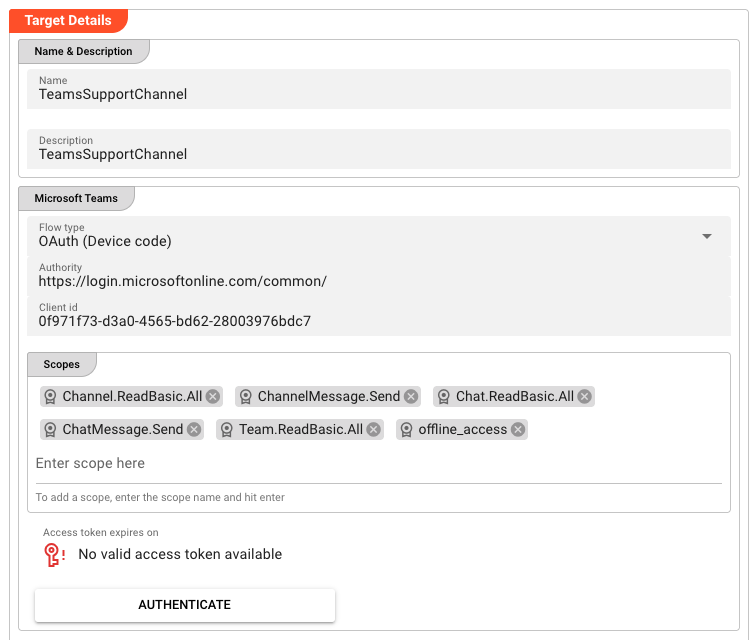
Like MS 365 Email, Teams targets use OAuth:
| Field | Description |
|---|---|
| Flow type | None, OAuth (Client Credentials), OAuth (Authorization code), or OAuth (Device code). |
| Authority | The OAuth authority URL. |
| Client id | The Azure application ID registered for Teams access. |
| Scopes | Required scopes (e.g., Chat.Create, ChannelMessage.Send). |
| Account id | (Read-only) Authenticated account. |
| Access token expires on | (Read-only) Token expiry. Re-authenticate if expired. |
Chats
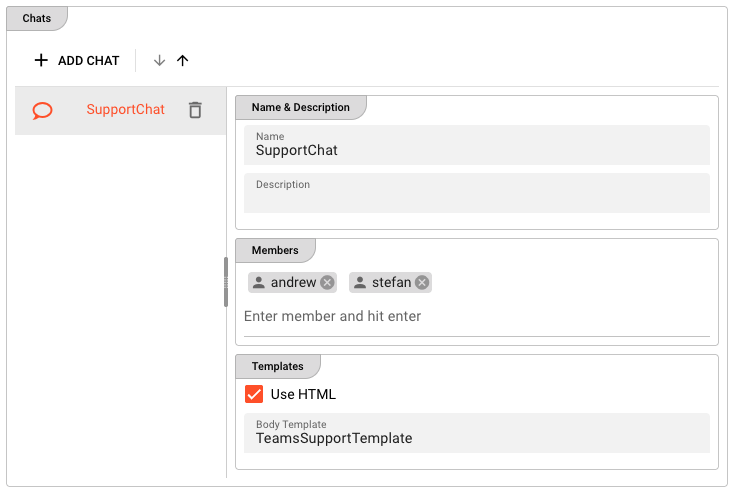
The Chats section lets you define one or more group chats that will receive alarm messages.
| Field | Description |
|---|---|
| Name | Chat configuration name. |
| Description | Optional description. |
| Members | List of member identifiers (emails or user IDs). Press Enter after each entry. |
| Use HTML | Enables HTML formatting for chat messages. |
| Body Template | Name of a template defined in the Templates tab. Used for the chat message body. |
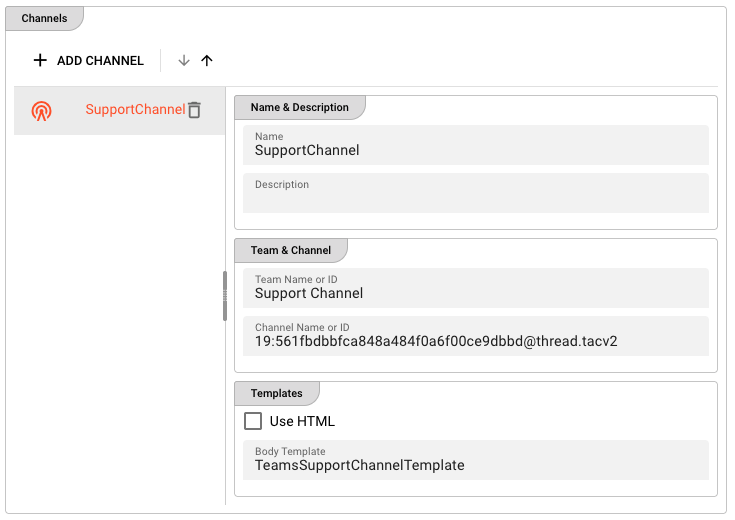
Channels
The Channels section lets you define one or more Teams channels.
| Field | Description |
|---|---|
| Name | Channel configuration name. |
| Description | Optional description. |
| Team Name or ID | The Microsoft Teams team name or its internal ID. |
| Channel Name or ID | The channel name or its internal ID. |
| Use HTML | Enables HTML formatting for channel messages. |
| Body Template | Name of a template defined in the Templates tab. Used for the channel message body. |
Target log tab
Every target has a Log tab that shows the runtime log of that specific target service. This is helpful for diagnosing:
- Authentication failures
- SMTP connection errors
- Teams API rejections
- Message delivery issues
Select the target, switch to the Log tab, and inspect the most recent events.