Templates
Templates control the content of alarm notifications sent to Email and Microsoft Teams targets. Each template provides two versions of the message:
- Plain Content — Text-only format used by clients that do not support HTML.
- HTML Content — Rich formatting used when the target or mail configuration has Use HTML enabled.
Layout
The tab is split vertically:
- Left — Table of all templates.
- Right — Details panel for the selected template.
Templates table
The table has two columns:
| Column | Description |
|---|---|
| Template | The name of the template. |
| Actions | A remove button appears for the selected template. |
Toolbar actions
- Add Template — Opens a dialog to name and create a new template.
- Filter Templates — Quick text filter by template name.
- Refresh — Reloads the template list from the cluster.
Adding a template
Click Add Template, enter a unique name, and confirm. The new template is created with default content that demonstrates the variable syntax. It is automatically selected for editing.
Removing a template
Select the template and click the trash icon, then confirm. Deleting a template breaks any target or mail configuration that references it by name.
Before deleting a template, check your Alarm Targets to make sure no mail, chat, or channel is still using it.
Template details
The right panel shows three sections when a template is selected.
Template Name
The name is displayed read-only. To rename a template you must delete it and recreate it.
Plain Content
A code editor for the text-only version of the notification. The language mode is plain text.
HTML Content
A code editor for the HTML version of the notification. The language mode is HTML, so syntax highlighting is active.
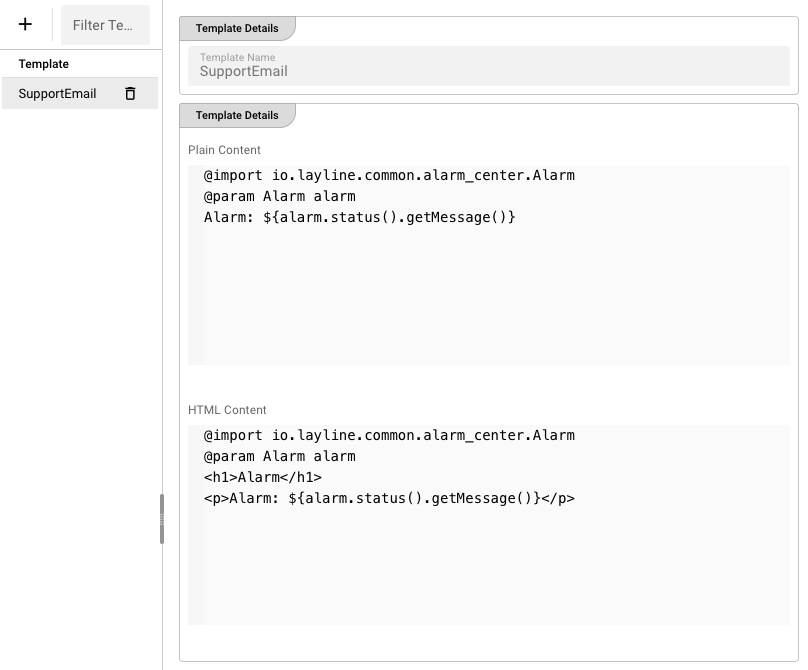
Template syntax
Both Plain and HTML content are evaluated as templates that can reference the alarm object. The default template created by layline.io uses the following preamble:
@import io.layline.common.alarm_center.Alarm
@param Alarm alarm
After the preamble, you can use ${...} expressions to insert alarm data.
Common variables
| Expression | Description |
|---|---|
${alarm.status().getMessage()} | The alarm status message (the same text shown in the Alarms detail panel). |
${alarm.name()} | The alarm name. |
${alarm.severity()} | The alarm severity (Error, Warning, or Info). |
${alarm.node()} | The node that raised the alarm. |
${alarm.raised()} | The epoch timestamp when the alarm was raised. |
Example: Plain Content
@import io.layline.common.alarm_center.Alarm
@param Alarm alarm
Alarm: ${alarm.status().getMessage()}
Severity: ${alarm.severity()}
Node: ${alarm.node()}
Example: HTML Content
@import io.layline.common.alarm_center.Alarm
@param Alarm alarm
<h1>Alarm: ${alarm.name()}</h1>
<p><strong>Severity:</strong> ${alarm.severity()}</p>
<p><strong>Message:</strong> ${alarm.status().getMessage()}</p>
<p><strong>Node:</strong> ${alarm.node()}</p>
How templates are used
Templates are referenced by name in the Alarm Targets configuration:
- Email — Each mail definition has a Subject Template and a Body Template field. Enter the template name there.
- Teams — Each chat or channel has a Body Template field. Enter the template name there.
When an alarm is routed to a target, the Alarm Center looks up the referenced template, evaluates it with the current alarm object, and sends the resulting plain and/or HTML content.
If a target has Use HTML enabled but the HTML Content of the template is empty, the plain content is sent as a fallback.
Saving changes
When you edit either content area, an Apply Changes button appears in the bottom-right corner. Click it to save the template to the cluster.